4. Build the Journey
A Journey is a flow of steps that the SDK runs on the device. Each step reads from and writes to the JourneyContext — a per-execution variable bag — so later steps can use what earlier steps produced.
Create a draft
- Open Journeys in the Orchestrator.
- Click + to start a new Journey. The Journey Editor opens on the Basics and Audience section.
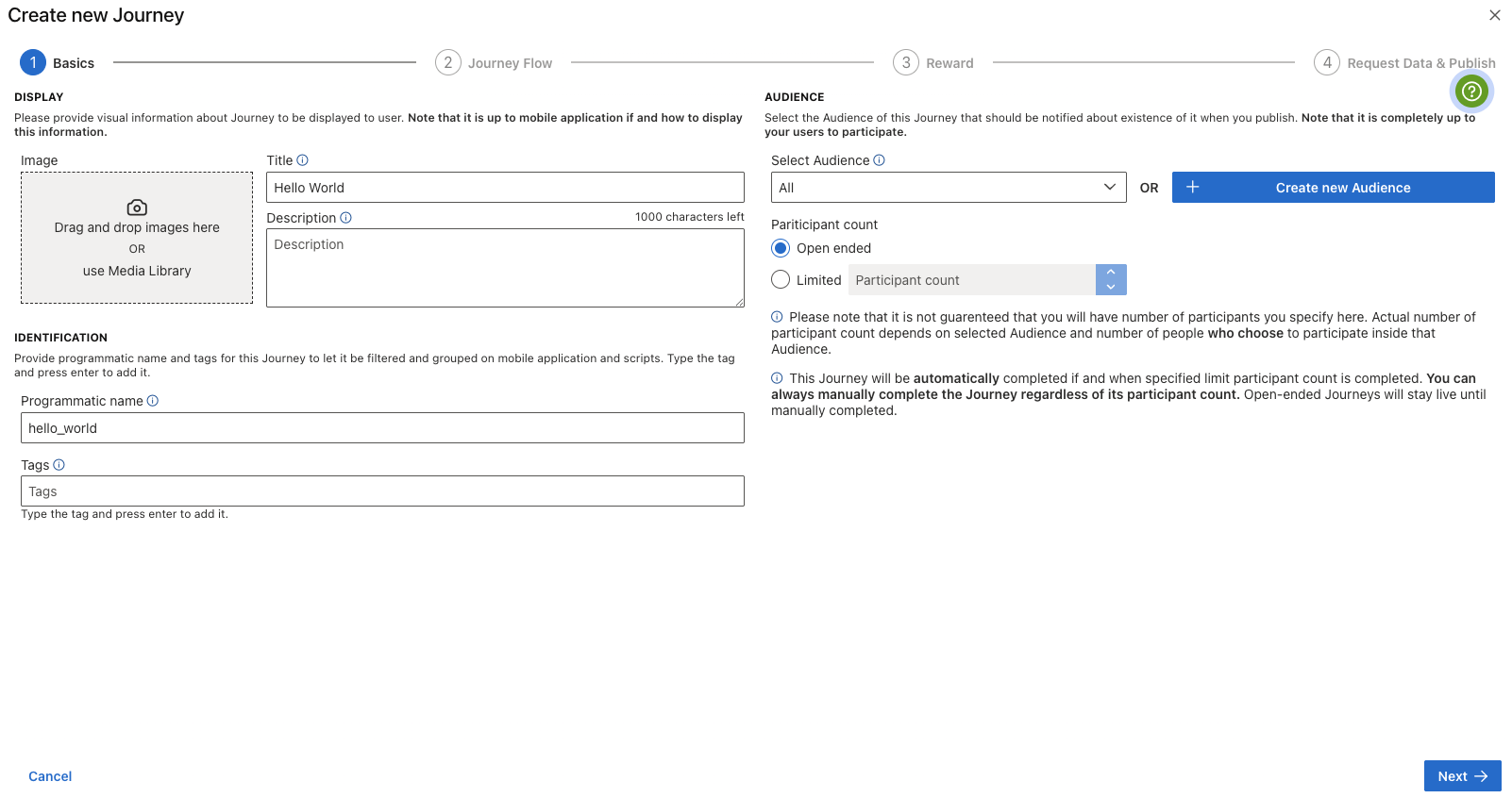
[#03] Journey Editor — Basics and Audience
- Fill in:
- Title:
Hello World - Programmatic name:
hello_world(this is the unique identifier your host app will use — see running Journey in your app. - Description:
A first DataSapien journey that greets the user. - Tags: add a tag like
getting-startedso your app can filter for it. - Target Audience: select the built-in All Audience. (More on Audiences later.)
- Leave participants as Open-ended.
- Title:
Design the flow
Move to the Journey Flow section. You'll use the Flow Designer to drag five steps onto the canvas and connect them.
The flow is:
Start → MeData step → Question step → Script step → Screen step → End
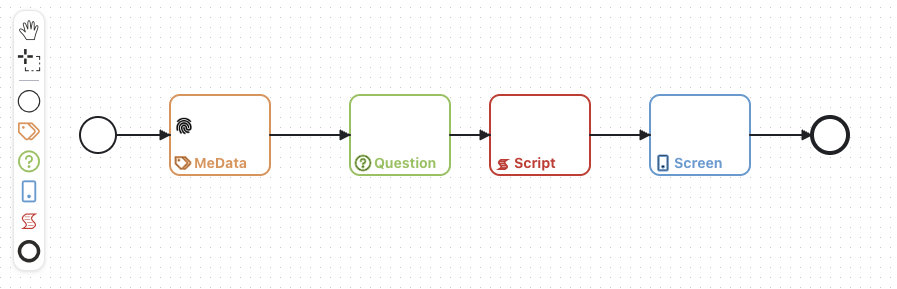
[#04] The five-step Hello World flow on the canvas
MeData step — collect favorite_color
Drag a MeData step between Start and the next step. Double-click it to open the MeData Usage Editor and select your favorite_color Definition.
When this step runs, the SDK shows the question you authored on the MeData Definition, stores the answer in the on-device data vault, and puts it into the JourneyContext under the key favorite_color.
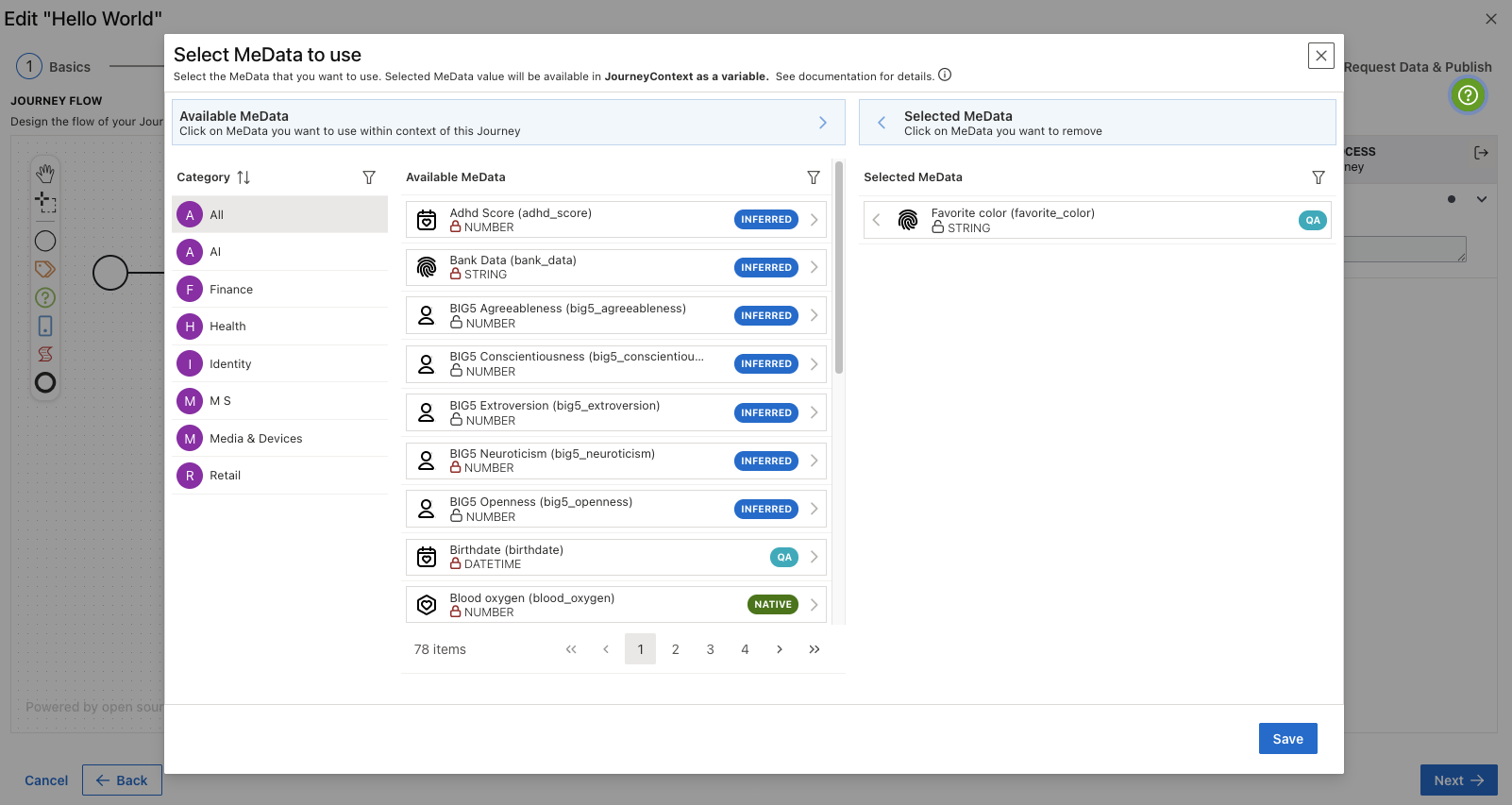
[#05] Selecting favorite_color in the MeData Usage Editor
Question step — ask for the user's name
Drag a Question step next. Double-click it to open the Question Editor and configure:
- Question text: "What's your name?"
- Free-form answer (no predefined choices), single answer.
- JourneyContext variable:
user_name.
After this step runs, user_name is available in the JourneyContext.
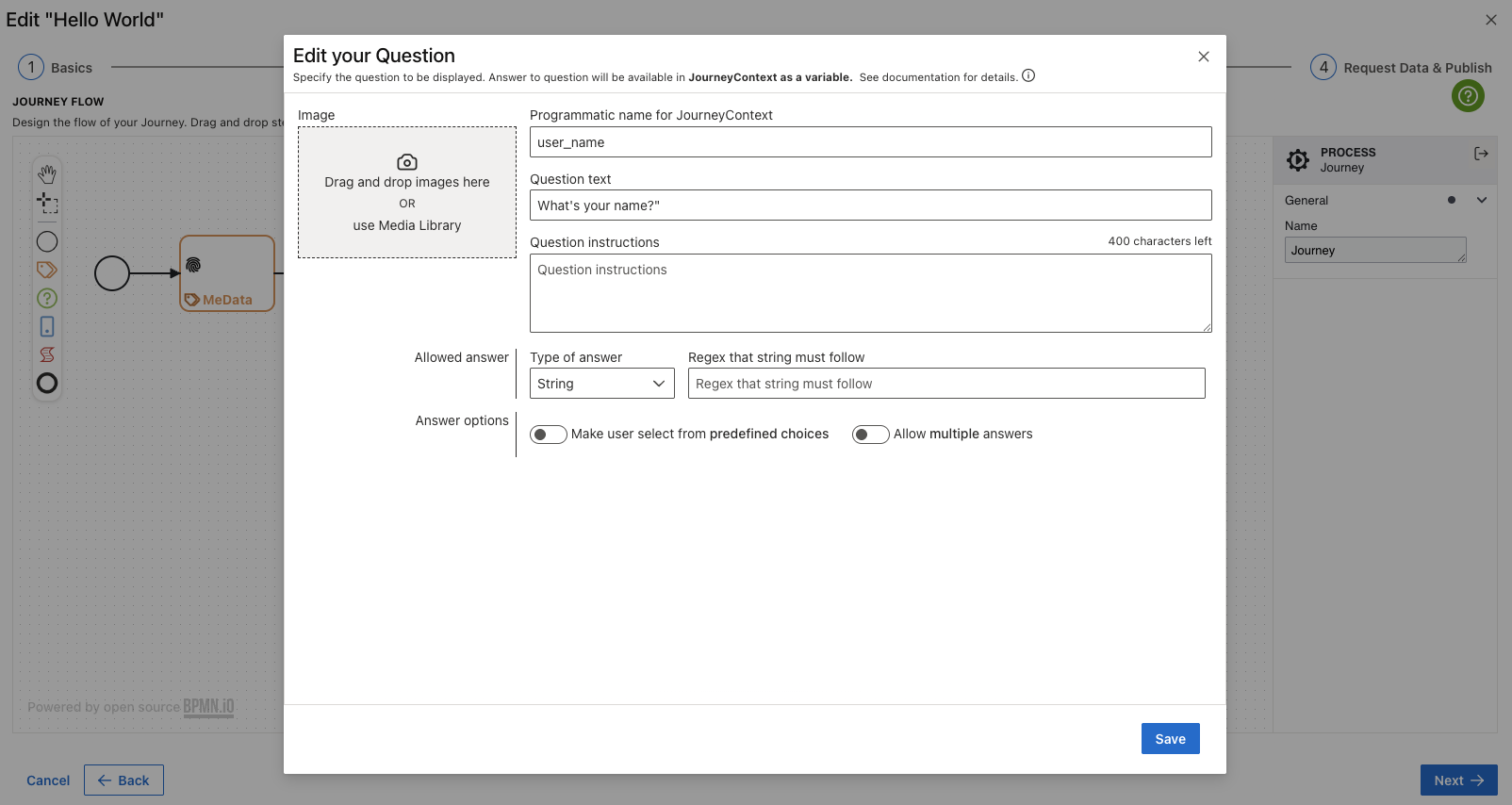
[#06] The Question Editor configured with "What's your name?"
Script step — compose the greeting
Drag a Script step next. Double-click to open the Script Editor and paste:
// Read values that earlier steps put into the JourneyContext.
const userName       = JourneyContext.getValue("user_name");
const favoriteColor  = JourneyContext.getValue("favorite_color");

// Compose the greeting and write it back to the JourneyContext.
const greeting = `Hello, ${userName}! Your favourite colour is ${favoriteColor}.`;
JourneyContext.putValue("greeting", greeting);

// Tell the SDK the script finished successfully and the Journey can advance.
onSuccess(true);
JourneyContext.getValue("name")reads a value an earlier step wrote.JourneyContext.putValue("name", value)writes a value for later steps to read.- A Script step must end by calling
onSuccess(true)to advance, oronSuccess(false)to signal failure. There is noreturnvalue used by the SDK. async/awaitis supported — wrap external work intry/catchand callonSuccess(false)fromcatch.
Script steps run in the SDK's embedded JavaScript engine. They can read MeData via the MeDataService, invoke ML/AI models via the IntelligenceService, and call external APIs via Managed APIs. See Scripts and Managed APIs for the full picture.
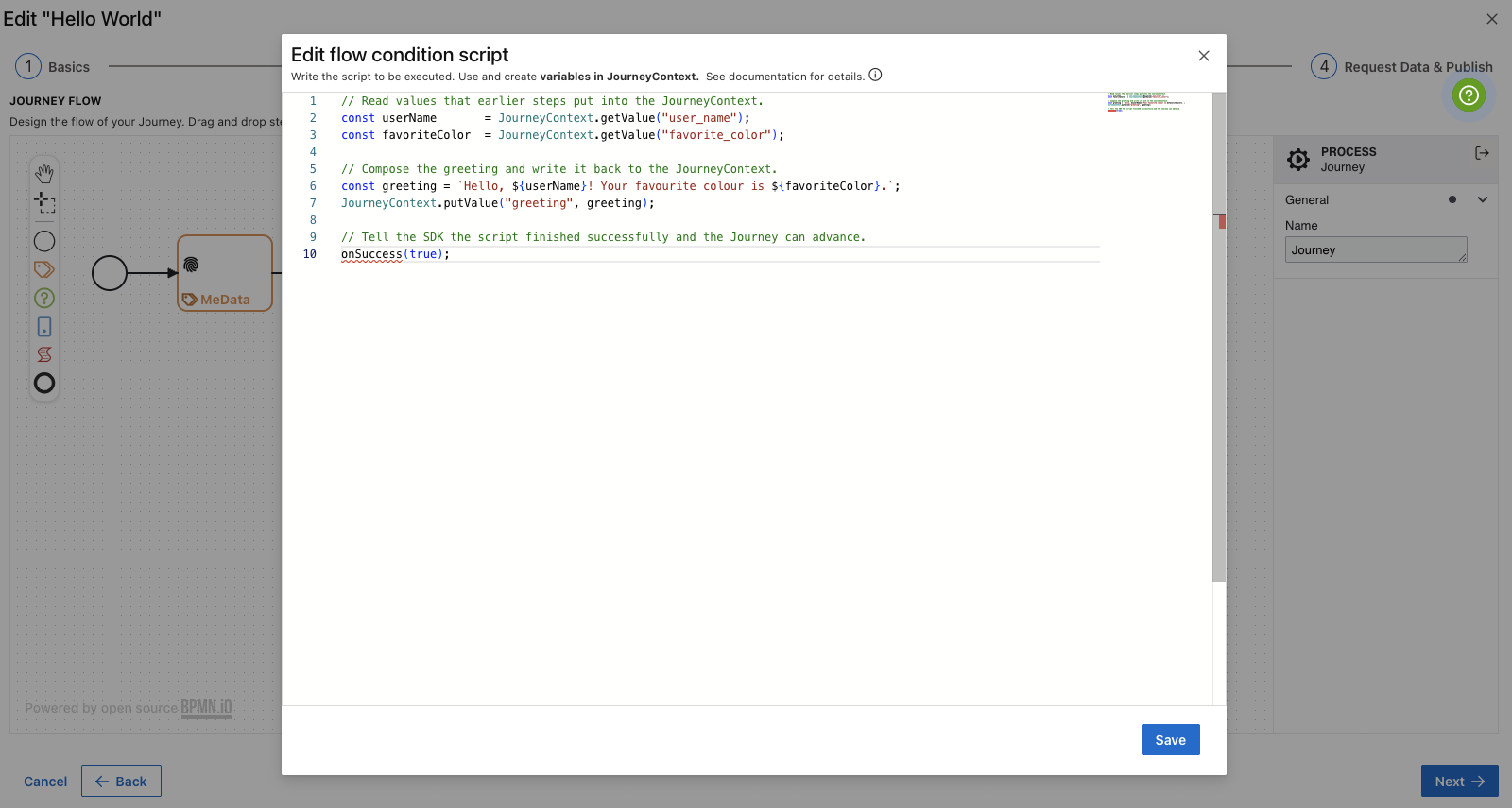
[#07] The Script Editor composing the greeting
Screen step — display the greeting
Drag a Screen step before the End step. Double-click to open the Screen Designer and:
- Drop a Text (or Rich Text) component onto the canvas.
- Set its content to
{{greeting}}. The{{...}}syntax embeds a JourneyContext variable. - Drop a Button component, label it
Done, and wire it to advance the Journey.
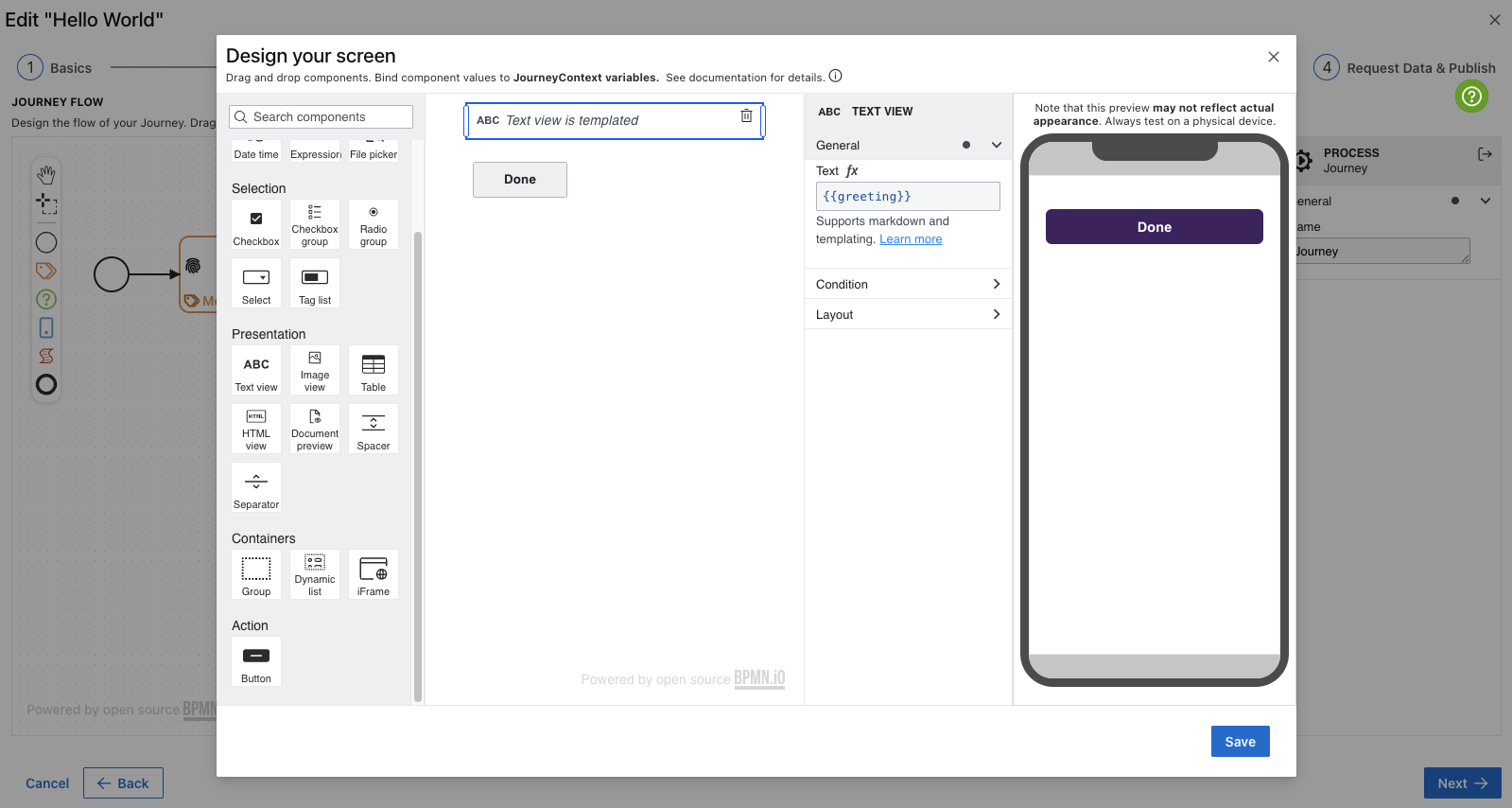
[#08] Screen Designer displaying the composed greeting
Connect steps
Connect Start → MeData → Question → Script → Screen → End steps if you havent already.
You can have conditional connections between steps. To create a conditional connection, double click on the connection and write the JavaScript code
to return either true or false. The SDK will execute the code and follow this connection if it returns true.
Click next at the bottom of the page to finish designing the flow and continue Journey creation.